SCOPE — Tutorial: Ingesting your first trace
From docker compose up to one session in the knowledge graph and in the dashboard
Before starting
This walkthrough runs the whole SCOPE stack on your machine, sends it the trace of a small two-agent application, and follows that trace to the places where you can look at it: the knowledge graph in Neo4j and the SCOPE dashboard. It takes about 15 minutes, most of it the first image build.
You need:
- Docker with the Compose plugin (v2.17 or later) and at least 12 GB of memory given to Docker.
- A checkout of this repository.
uv, to run the example application.- An OpenAI-compatible LLM endpoint and key. Without one, spans are still collected and normalised into the knowledge graph, so this walkthrough works, but the analyses that call a model do not run.
1. Start the SCOPE stack
Edit .env: set LLM_MODEL_NAME, EMBEDDING_MODEL_NAME, LLM_GATEWAY_BASE_URL and
LLM_GATEWAY_API_KEY, and replace the change-me passwords. Then build and start everything:
The first build takes a while. When it returns, check the services:
All services should be running (and healthy where there is a healthcheck). clickhouse-setup
is a one-shot job and shows exited (0).
These are the addresses used in the rest of the walkthrough:
| What | Where |
|---|---|
| Dashboard and API | http://localhost:8080 |
| OTLP/HTTP collector, where the application sends its spans | http://localhost:4318 |
| Neo4j browser, the knowledge graph | http://localhost:7474 |
| RabbitMQ management | http://localhost:15672 |
2. Send one trace
The example MAS we'll be using is a simple currency conversion app made up of two agents: a rate_provider looks up the exchange
rate and hands over to a currency_assistant, which converts the amount. It calls no model, so
it needs no key. Each run is one session: a single, independent execution that SCOPE
reconstructs from its spans.
Open examples/currency-demo/main.py
to see how it is instrumented with the AGNTCY Observe SDK: @agent for each agent, @tool for
each tool, @graph for the workflow, and one session_start() around the request. The
Instrument your app tutorial explains each piece.
In another terminal, from the repository root:
3. Follow the trace through the pipeline
The spans go through four steps. Each one is visible in the logs of the stack, from
deploy/docker-compose:
- The collector receives the spans and stores them in ClickHouse.
-
When the
session.endspan arrives, the session-end trigger publishes the session to RabbitMQ. It logs nothing when it does: its log only shows that it is polling (Polling default.otel_traces for session.end every 3s), and a404 Not Foundline or two at startup is normal, it is waiting for the norm worker's queue to exist. -
The norm worker receives the session, fetches its spans, maps them onto the SCOPE ontology and writes the session to the knowledge graph. This is where you find the session id:
Fetched 11 spans for session_id=00000000-0000-4000-8000-000000000001
Completed processing for session_id: 00000000-0000-4000-8000-000000000001
Note the session id, you will look for it below. If nothing shows up after a minute, check that the spans arrived:
docker compose logs otel-collector | tail. -
The embedding worker takes over, and the analysis workers (metrics, grouping, stateful evaluation, cognitive failures) run on the session.
The session appears in the graph within a few seconds. The analyses take longer, depending on your model.
4. See the session in the knowledge graph
Open the Neo4j browser at http://localhost:7474 and connect with:
| Field | Value |
|---|---|
| Connect URL | bolt://localhost:7687 |
| Username | neo4j |
| Password | the NEO4J_PASSWORD from your .env |
List the sessions:
The nodes that describe the system and its executions carry a layer property saying what they are: structural for the
multi-agent system itself, execution for a session and its calls, and trajectory for the states
and transitions between them. Look at the first and then at the other two.
The topology is the structural layer: the multi-agent system as types. It holds the MAS, its
agents, the tools they use and the processing steps, not any single run. It is shared by all the
sessions of the application:
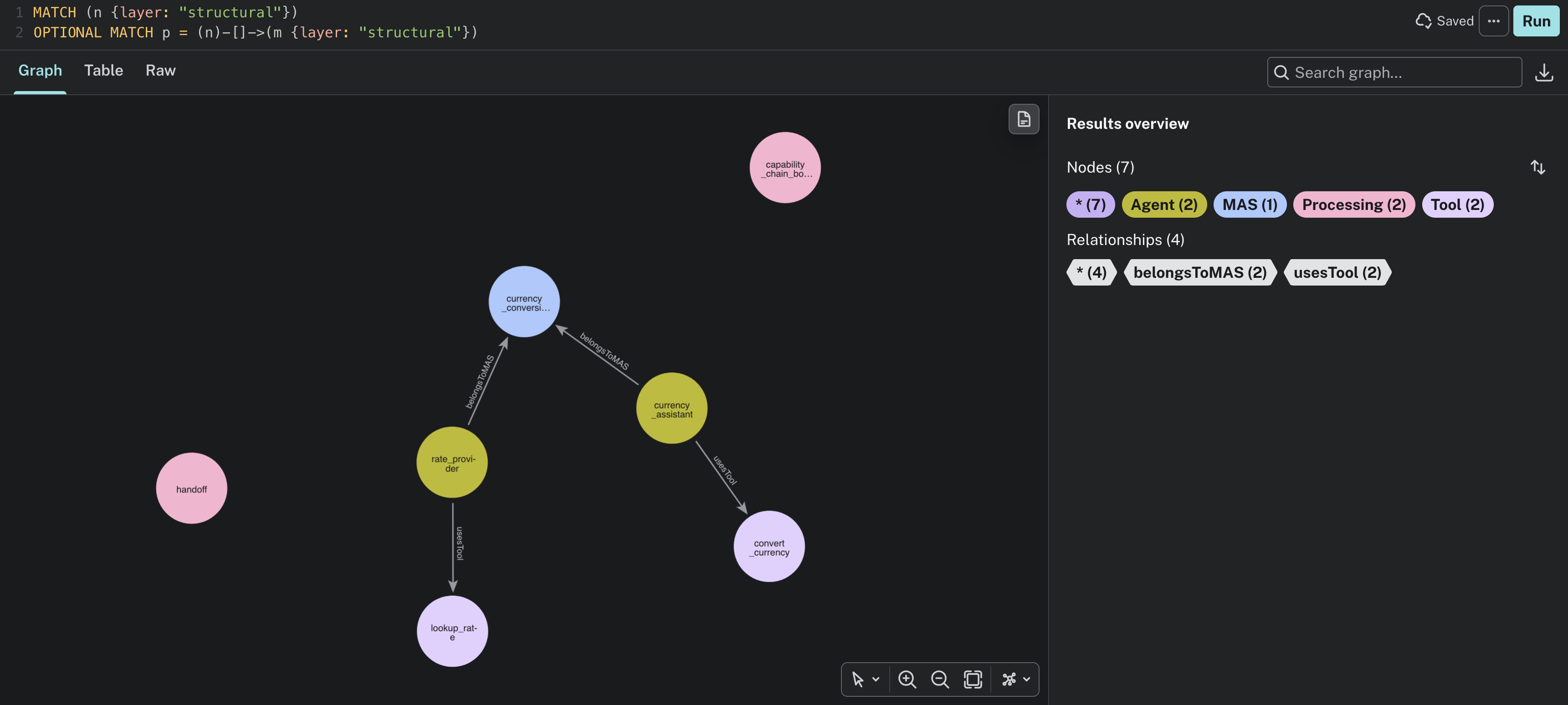
For the example, you see the currency_conversion MAS (named after the @graph), its two agents
(rate_provider and currency_assistant) each tied to it by belongsToMAS, and the tool each one
uses by usesTool: lookup_rate and convert_currency. The two Processing nodes, handoff and
capability_chain_boundary, are not in your code: SCOPE derives them from the trace. Click a node
to see the description you gave it in the decorator.
The execution is what happened in one session: the instances. Use the id you noted above. The query returns the session, its calls (the multi-agent call, one agent call per agent, and the tool calls), and the states and transitions that link them:
MATCH (n)
WHERE n.sessionId = "<your session id>" AND n.layer IN ["execution", "trajectory"]
OPTIONAL MATCH p = (n)-[]->(m)
WHERE m.sessionId = n.sessionId AND m.layer IN ["execution", "trajectory"]
RETURN n, p
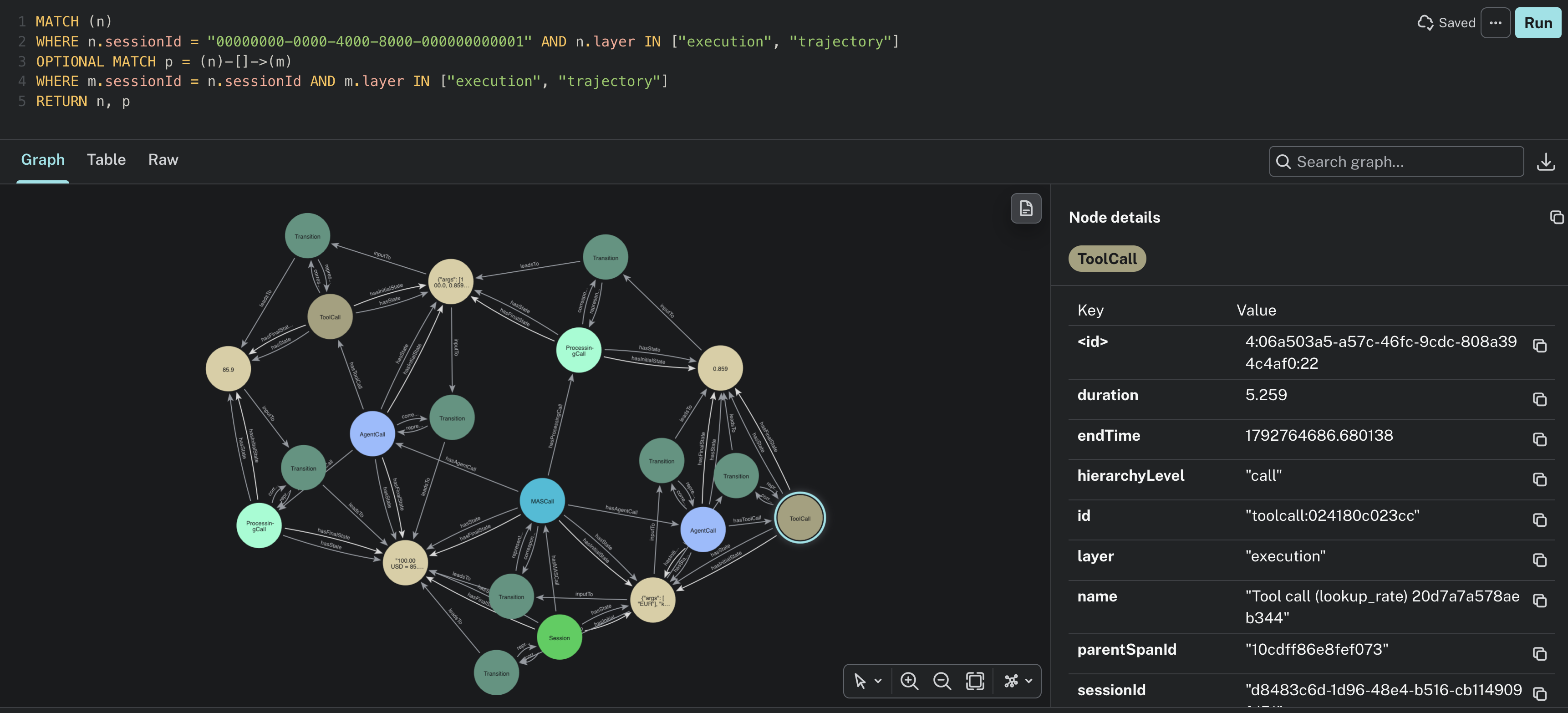
Every call points to the transition it corresponds to, and to the state it started from
(hasInitialState) and the state it ended in (hasFinalState). Replace ["execution", "trajectory"]
with ["execution"] in both places to keep only the session and its calls, without the states and
transitions.
Click a node to read its properties: the agent or tool name, its duration, whether it succeeded and the text that went in and out. The node and relationship types are defined by the ontology.
5. See the session in the dashboard
Open http://localhost:8080. The dashboard reads the same knowledge graph through the API.
-
Open Applications. The application is named after the service the example registered,
currency-demo.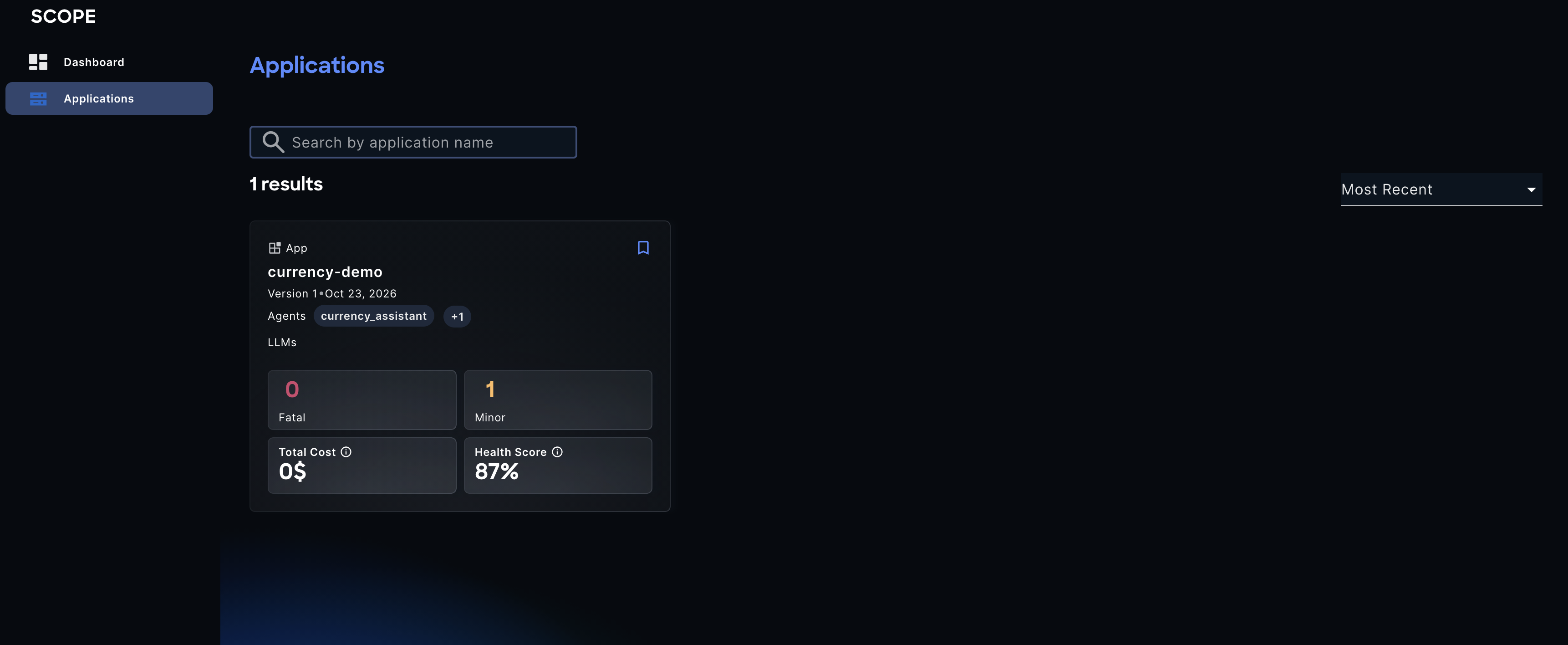
-
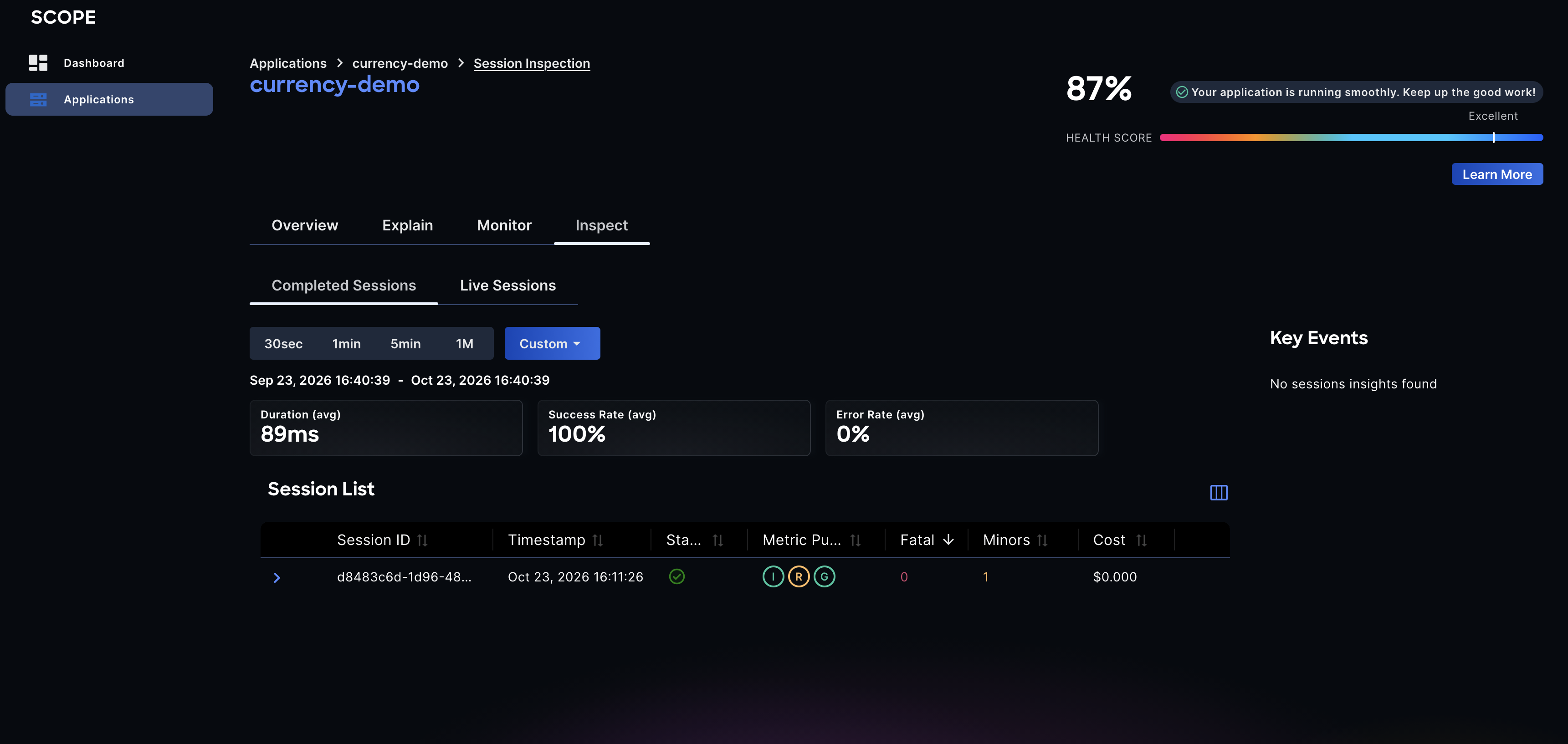
Open the application and go to Inspect. Your session is listed with its cost and metrics computed so far.
-
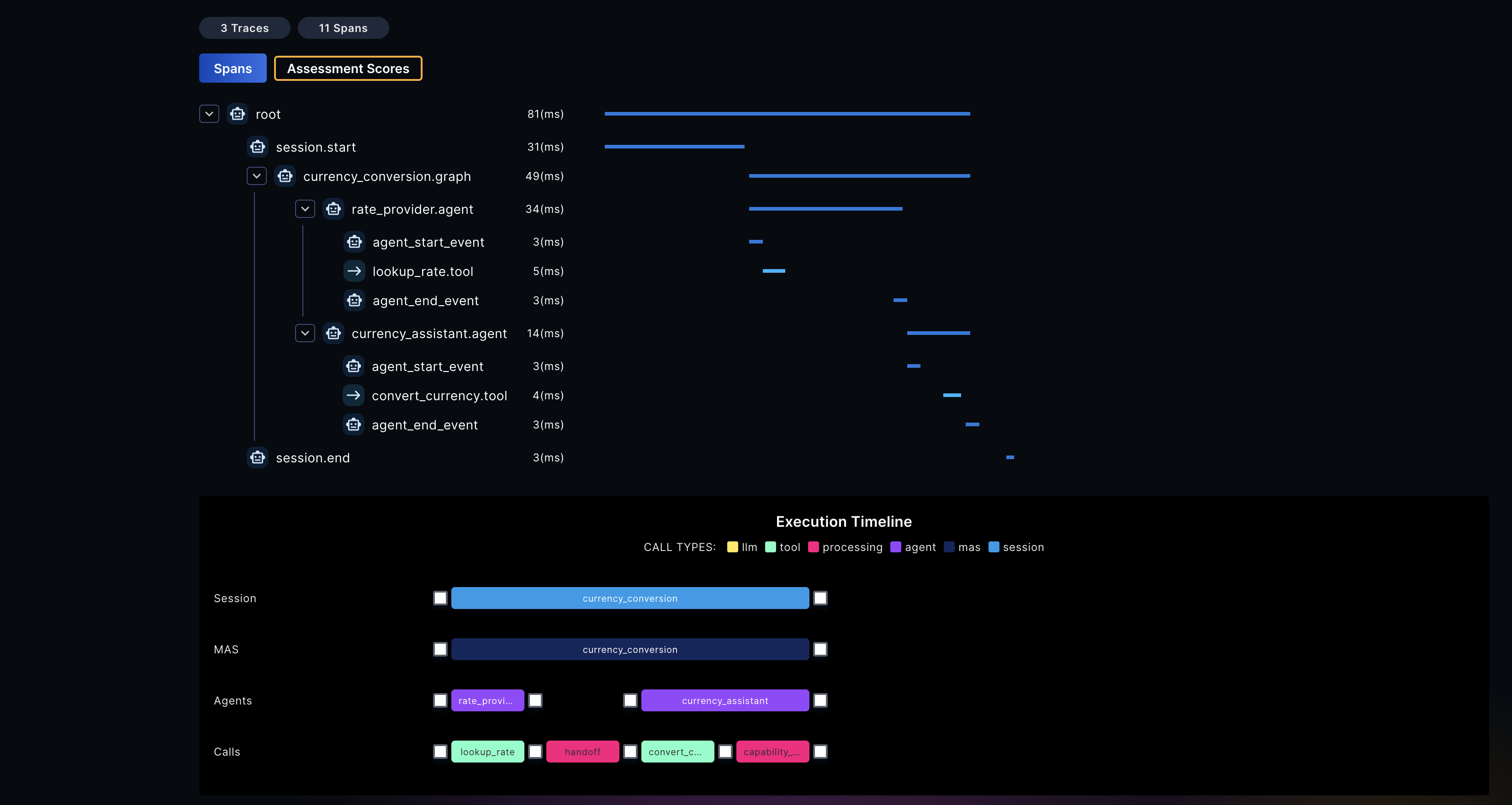
Click on the session. The execution graph shows the two agents and the tools they called, in the order they ran, and the details panel shows each step's input and output. This is the same structure you saw in Neo4j.
6. Send more and clean up
Run the example a few times with different amounts to give SCOPE more sessions to compare:
When you are done, from deploy/docker-compose:
docker compose down        # stop the stack and keep the data
docker compose down -v     # stop it and delete the data volumes
Where to go next
- Instrument your own application, manually or with a coding assistant.
- Deploy SCOPE on Kubernetes with the Helm chart.
- How the analysis works.